
THE TRAX EDITOR
The Trax Editor is Maya's premiere nonlinear animation tool. With the Trax Editor, you can manipulate and arrange your animation sequences from a higher level than from the Graph Editor or Dope Sheet.
The Trax Editor window has four work areas:
-Trax menu bar
Contains character and clip related options that let you perform all required actions for creating and editing your animation nonlinearly. See Trax menu bar.
-Trax toolbar
Contains a selection of buttons that let you quickly access some of the functionality contained in the Trax menu bar. See Trax toolbar.
-Track control area
Contains buttons that let you control the playback of each track's animation. See Track control area.
-Track view area
Contains all the tracks, animation clips, and audio clips for your loaded characters. See Track view area.
What is the Trax Editor?

The Trax Editor is a high-level animation tool that lets you select and control
characters and their animation clips, layer and blend animation sequences, synchronize
your animation and audio clips, and
drag-and-drop animation clips between mapped characters. See Mapping animation
between characters in the Character Setup and Deformers guide. You can work
with any type of animation in the Trax Editor—except motion path animation.
For example, suppose you keyframed a character's walk and you now want to turn
it into a walk cycle. You can create a clip for the keyframe animation sequence,
scale and trim the clip to get it to be the right length and to have similar
start and end poses, and then cycle the clip to create a proper walk cycle.
If you wanted to change the walk cycle's pace or rhythm, you can then create
a time warp curve for the clip, or if you wanted to turn the walk into a march,
you can manipulate the character and key into the clip directly. You can do
all
What is the Character Mapper?

With the Character Mapper window you can create a correspondence between a
source and target character's nodes or attributes so that you can import and
export or copy and paste animation clips between mapped characters in the Trax
Editor.
What are the Visor, Outliner, and Clip Library?
When working with nonlinear animation, there are three ways you can access your clips:
* Drag and drop source clips from the Visor to the Trax Editor
* Drag and drop regular or source clips from the Outliner to the Trax Editor
* Insert source clips into their respective characters in the Trax Editor using
the Clip Library
Note
Before you can drag and drop or copy and paste clips from one character to another, the characters must first be mapped. See Mapping animation between characters in the Character Setup and Deformers guide.
Visor

The Visor lists all the source clips in your scene as icons. You can select a clip icon in the Visor, and then middle-drag the clip onto a character in the track view area. Dragging a clip from the Visor onto a character in Trax adds a copy of the selected clip to that character. See Use the Visor with Trax and Visor in the Basics guide.
The Visor has four tabs that let you view your scene's nonlinear animation data. You can access all source clips and poses in your scene from the Character Clips, Character Poses, Unused Clips, and Unused Poses tabs. All the clips that are used by characters in your scene appear in the Character Clips and Character Poses tabs. All the clips and poses that are present in your scene, but are not used by a character, appear in the Unused Clips and Unused Poses tabs.
Outliner
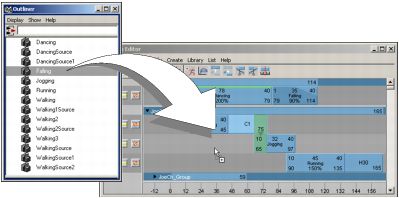
The Outliner lists all the source and regular clips that are in your scene as text. You can select a clip name in the Outliner, and then middle-drag the clip onto a character in the track view area. Dragging a clip from the Outliner onto a character in Trax adds a copy of the selected clip to that character. See To view clips in the Outliner, Use the Visor with Trax, and Visor in the Basics guide.
Clip Library

The Clip Library is a menu in the Trax Editor that lets you create copies of source clips and poses for all the characters loaded in Trax. When you select a source clip or pose from the Library, a copy of the selected clip or pose is created and inserted into its respective character in Trax. For more information, see Copy source clips to a character and clipLibrary.